

Using eVaka Is Getting Easier – Receive Notifications Directly on Your Phone
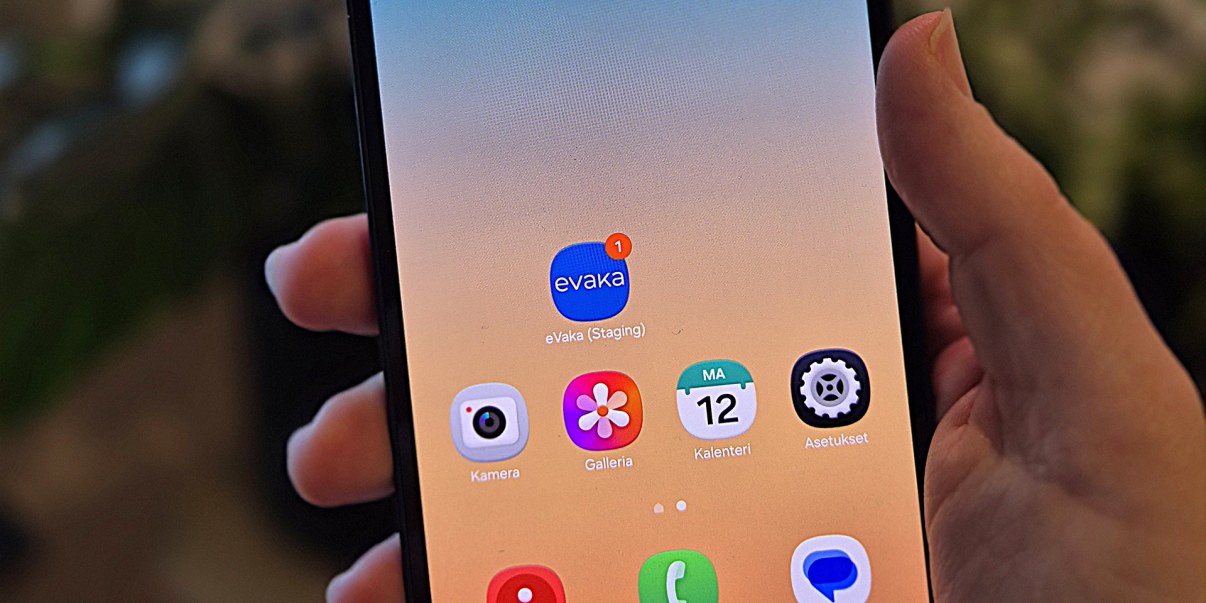
Using electronic services in early childhood education becomes even easier. You can now add eVaka to your phone’s home screen and enable notifications directly on your device.
eVaka runs in your web browser, so there is no need to download a separate app. This feature is available on both Android and iOS devices (iPhone and iPad).
Stay Up to Date with Notifications
Phone notifications help ensure you do not miss important information. You will receive a notification, for example, when:
- a new message or announcement is sent by your child’s early childhood and care (ECEC) centre
- attendance reservations are missing or a holiday survey is about to close
- a new event is added to the calendar
- a discussion appointment becomes available or is approaching
- you receive a new decision or document.
When you tap a notification, eVaka opens directly to the relevant content, such as a message, decision, or calendar event.
Email notifications will continue to work as before. On the My Information page, you can choose whether you want to receive notifications by email, phone, both, or neither.
How to Enable the Feature
Android Phone
- Remove the old eVaka icon if you have previously added it to your home screen.
- Open eVaka in the Chrome browser and sign in. The eVaka address is varhaiskasvatus.ouka.fi.
- Tap “Add eVaka to Home Screen” when prompted by eVaka.
You can also select “Install App” or “Add to Home Screen” from the browser menu. - Open eVaka using the new home screen icon.
- Tap “Enable” and allow notifications when your phone asks for permission.
We recommend using the Chrome browser on Android devices. If you use another browser, the setup steps may differ.
iOS Device (iPhone or iPad)
- Remove the old eVaka icon if you have previously added it to your home screen.
- Open eVaka in the Safari browser and sign in. The eVaka address is varhaiskasvatus.ouka.fi.
- Tap the Share icon in Safari.
- Select “Add to Home Screen” and then tap “Add”.
- Open eVaka from the new home screen icon and sign in again.
- Tap “Enable” and allow notifications when your phone asks for permission.
On iPhone, notifications work only when eVaka is opened from the home screen icon. Notifications will not work if you use eVaka in a Safari browser tab.
You can test that notifications are working by selecting Send Test Notification. Notification settings and instructions can also be found later on the My Information page.